NCPP User's Guide
Version 2.2.0
Table Of Contents
- Overview
- Getting Started
- Acquiring
- Installing
- Environment
- Fonts
- Command line options
- Probe Selection Window
- Selecting and Deselecting Probes
- Selecting data type
- Options
- Movie Control Window
- Moving around in Time
- Controlling frame updates
- Plot Canvas
- Canvas features
- Annotations
- Resizing canvas windows
- Zooming
- Menu accelerators
- Guide to menus
- File menu
- Data files
- Printing
- Save PNG
- Edit Menu
- Editing plot parameters
- View Menu
- ASCII cell data
- Probe Variables
- Variable Titles
- netCDF header
- Configuration File
- Known problems
- Incomplete features
Overview
ncpp is an interactive plotting tool for Unix/Linux workstations.
ncpp allows the user to view histograms of PMS-1D
and other size-distribution probe data stored in
netCDF
files that conform to the NCAR-RAF/nimbus
conventions. Both Low-rate and Mixed-rate files are supported, and
files where the data have been reduced below 1 sps (sample per second), e.g.,
files run through ncav.
A few of its features are:
- View raw counts, concentrations, surface area, and volume.
- Multiple frames (upto 7 x 9).
- Can draw from up to 3 netCDF files on the same plot.
- ASCII window.
- ASCII window, with housekeeping and derived variables.
- Ability to edit cell diameters.
- Allows user-defined titles, labels, scaling, and major & minor tic marks.
- Ability to add Annotations.
- Publication quality [Encapsulated] [color] PostScript printouts.
ncpp was written at the Research
Aviation Facility of The National Center for Atmospheric Research to view and analyze our particle probe histogram data. The
NCAR-RAF/nimbus
conventions were designed to store multi-rate data, i.e., variable A may be
stored at 5sps and variable B at 25sps. Every effort has been made to make
it "what you see is what you get" between the screen and printouts.
Note on data files:
- Both the raw counts histogram and the concentration histogram must be present in the file.
- ncpp only recognizes a fixed set of variable names for the histograms. This is easily modified in DataFile.cc.
Getting Started
Acquiring
- ncpp from the EOL/CDS downloads page, or via anonymous ftp from ftp.eol.ucar.edu.
Installing
- For system use, the binary may be placed in something like
/usr/local/bin.
For single user, place the binary in ~/bin (Make sure ~/bin is in your
PATH).
Environment
- ncpp is written in C++, requiring X11/R6 and Motif 2.0 (or later),
and the netCDF library 3.0 or later. Our current development platform
Redhat and Fedora Linux.
ncpp uses, though it is not required, a shell environment variable
called DATA_DIR as the default directory to locate data files.
Fonts
- Fonts (on screen) have been a source of irritation from the start. What
looks great on Solaris looks like crap on Linux or an HP. You can modify
the fonts for the screen in the XmNCpp file. All font references
are at the top. The X programs xfontsel and xlsfonts
can help you locate a font that looks good on your machine (you'll need
10, 12, 14, 18, and 24 point sizes for the font you do locate, with 12 ∓
14 being the most heavely used).
Command Line Options
- data_file, a netCDF data file that conforms to the
NCAR-RAF/nimbus conventions.
Examples
- Run with no command line parameters:
1024% ncpp
- Load a single data file:
1025% ncpp /home/data/162rf08.cdf
Probe Selection Window
Selecting and Deselecting Probes
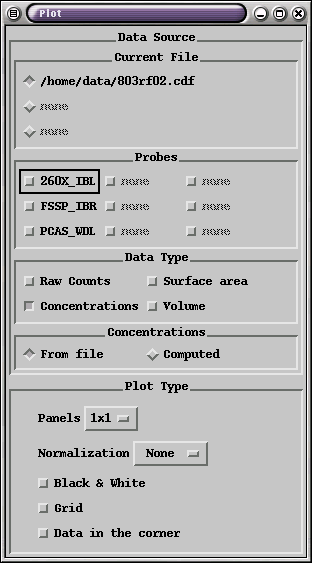
- After you have selected which data file, turn on the probes you wish to
view. Multiple probes may selected.
To de-select a variable, click on it again. The file, axis,
location and panel must all match from when the variable was selected. This
can get confusing if you are drawing data from multiple files.
Data Types
- Turn on which data types you wish to view (you may select more than one).
Turning off all data types will cause a core dump at this time.
Concentrations
- You may choose to have ncpp read concentrations from the netCDF
file (the default), or compute them on the fly. Computing is useful if you
want to modify certain probe parameters (see Edit Cell Diameters).
Options
- Panels
- This allows you to select how many Postage stamps to display per
data type.
- Normalization
- This allows you to select a normalization method for dividing down
concentrations. Options are None, Linear, and Log.
- Black & White (on/off)
- Converts all color traces to black and white. Dashed lines are used
to differentiate variables in black and white. This option is provided
to let the user preview black-and-white print-outs.
- Grid (on/off)
- Turns grid on or off.
|
|
Movie Control Window
Moving around in Time
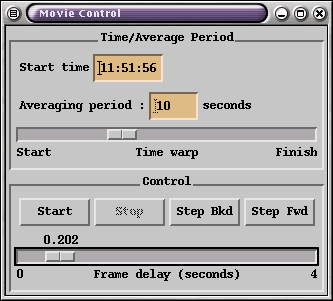
- ncpp defaults to the start time of the flight, and a 10 second
averaging period per frame. New start times and averaging periods may be
entered at the top of the Movie Control window. There is also a slider
called Time warp that let's you quickly move to a new start time.
Controlling frame updates
- To start movie style updates, press the Start button. Frame update
rate will depend on how fast your computer is, number of seconds in averaging
period, and number of probes selected. Increase the frame delay via the
Frame delay slider. When the movie is not running, Step Fwd
and Step Bkd buttons are provided.
If the flight wraps around midnight, times past midnight should be greater
than 24:00:00 (e.g. 1:00am start time should be entered as 25:00).
|
|
Canvas Features
- Annotate
- ncpp has the ability to annotate graphs. In the upper
right corner of the main plot canvas there are a couple of buttons,
one with the letter "A". Press the "A", and your pointer
will turn into a text insertion style cursor. Move the cursor to where
you would like to start the annotation, and press the left mouse button.
Start typing, and finish the annotation by pressing return. Doing
just about anything will clear all annotations (due to the difficulty of
tracking their location as the user moves around in time, and rescales axes).
They should be added as the final option before printing.
- Resize
- All plot canvas windows are fully resizable. Resizing the screen
will have no affect on sizing or proportion of your printout, this is
controlled via the Printer Setup option.
- Zoom
- A zoom feature exists; place the mouse in the upper left corner
of what you want to zoom in on, hold the left mouse button down, and drag the
box over the segment you want to see. Moving left or above the initial
point will cancel the zoom when you let go. Your mileage may vary if
autoscaling is turned on. There is one level of un-zoom located in the
Options menu.
- Menu accelerators
- When looking through the various menus, one will notice CTRL
sequences to the right of the menu option label. These are called
menu accelerators, in ncpp they only work while the
cursor is located in the plot canvas.
Guide to Menus
File Menu
- The items in the File menu allow opening of data files from disk,
printer setup, and printing. In the case of an operation that will
overwrite an existing file, you will be prompted by an alert that allows
you to abort the write if you don't want the file to be overwritten.
- Open Data File.
- This displays a File Selection Box to select a file to read. There
is no error checking to see if the input file is valid. Invalid files
tend to cause a segmentation fault. Open Data File will close out all
previously-opened files.
- Add Data File.
- This displays a File Selection Box to select an additional file to open.
- Save PostScript.
- This displays a File Selection Box prompting for the name of the file
where you want to write the PostScript output.
- Printer Setup.
- This pops up a window with options to change the 'lp' command, the size of
plot to be printed, whether to print landscape or portrait, and color vs.
black and white.
- Print.
- This opens a pipe and sends PostScript commands to lp(1).
- Save PNG.
- This option allows you to save the plot image as a graphics file, which
can then be used in web pages, etc. You can adjust the size of the image
saved by first sizing the plot canvas.
Why not GIF or JPEG?
JPEG was rejected because it is a lossy algorithm. I would have chosen
GIF except Unisys owns the patent on the LZW compression
algorithm required to produce a GIF image. A new freeware image
compression standard has emerged; PNG. Both netscape and
Internet Explorer support PNG. Visit http://www.burnallgifs.org for more on the controversy.
Edit Menu
- XY Parameter
- window allows the user to edit titles, labels, autoscaling, number of
tic marks, and log vs. linear axis scales. This will convert the Y axis units from "N/cM3" to "N/cM3/um" to "N/cM3/ln(um)".
- Cell Diameters.
- This pops up a window for editing cell diameters, start and end bins,
and other probe parameters used in computing concentrations.
View Menu
- ASCII cell data.
- This opens a window for viewing the cell data in ASCII format. Cell
diameters are displayed, along with the values for all the data types (counts,
concentrations, surface and/or volume). The save button pops up a file
selection window allowing you to specify a file.
- Probe Variables.
- This opens a window showing all the housekeeping and derived parameters for
each probe, and the averaged values for each frame.
- Variable Titles.
- This opens a window listing variables names and their titles. The
"Category" menu may be used to reduce the list to just variables that belong
in a given category. The category system is not perfect, our system allows a
variable to exist in 1 category, even though some variables should belong in
more than one category.
- netCDF Header.
- This opens a window with output from the ncdump(1) program.
Configuration File
ncpp will read a file titled .ncplotrc in your home directory,
if it exists. Currently the 3 options that may be overridden are:
Colors = a list of seven colors space and/or comma seperated.
PrintCommand = new print command (eg: lp -d color -o nobanner).
PrintColor = Color (default is B&W).
LineWidth = # (default is 1).
Colors = red,blue,green,yellow,maroon,orange,
PrintCommand = lp -d color -o nobanner
PrintColor = Color
LineWidth = 2
The Unix command showrgb(1) can be used to view a list of all available
color names (showrgb | more). The Colors option allows you to override
the plot trace colors.
Known Problems
- Fedora Core 5 (and above): setenv XKEYSYMDB /usr/share/X11/XKeysymDB
- If the menu and button text shows up as squares, then some fonts are missing.
'yum install "xorg-x11-fonts*"' should solve the problem. We have noticed this on
Fedora 9 and up and RHEL 6.
- Invalid data files may cause a core dump.
- ncpp is expecting OAP probe concentration data to be in N/L and
all others in N/cm3.
- When viewing FSSP, the RANGE used for all panels is that for the first
panel (i.e. if the RANGE changes in the panels you have displayed, the program
will not pick this up, and you will be viewing wrong cell diameters for those
remaing panels).
- When viewing high-rate data, you must have more panels displayed than there
are samples in a given second (e.g. For 10hz data, you must have 3x4 or more
panels), otherwise "PgFwd" and "PgBkd" will do nothing.
Incomplete Features
Author
Christopher J. Webster
National Center for Atmospheric Research
Research Aviation Facility.
(303) 497-1044
email Chris Webster
Last update:
Wed Mar 6 15:28:35 MST 2013